Set up and use spending limits
Last updated: October 5, 2026
💡 Let a chosen address (can be non-signers) spend a capped amount of a token from your Safe account, with no signatures of multisig needed.
A spending limit is a policy. You set it once, and the Safe allowance module enforces it onchain. The spender can be anyone: a bot, a teammate, or an external wallet. They do not have to be a signer.
Spending limits live in Policies, alongside the Proposer role.
Before you start
You must be a signer or a proposer on the Safe account. You only see accounts where you hold one of those roles.
A signer has to sign and execute the transaction that creates the limit. Until it executes, the policy is Pending and the spender cannot withdraw.
Spending limits cap the amount per token. They do not restrict who the spender sends to.
Create a spending limit
Open Policies and select Add policy → Spending limit.
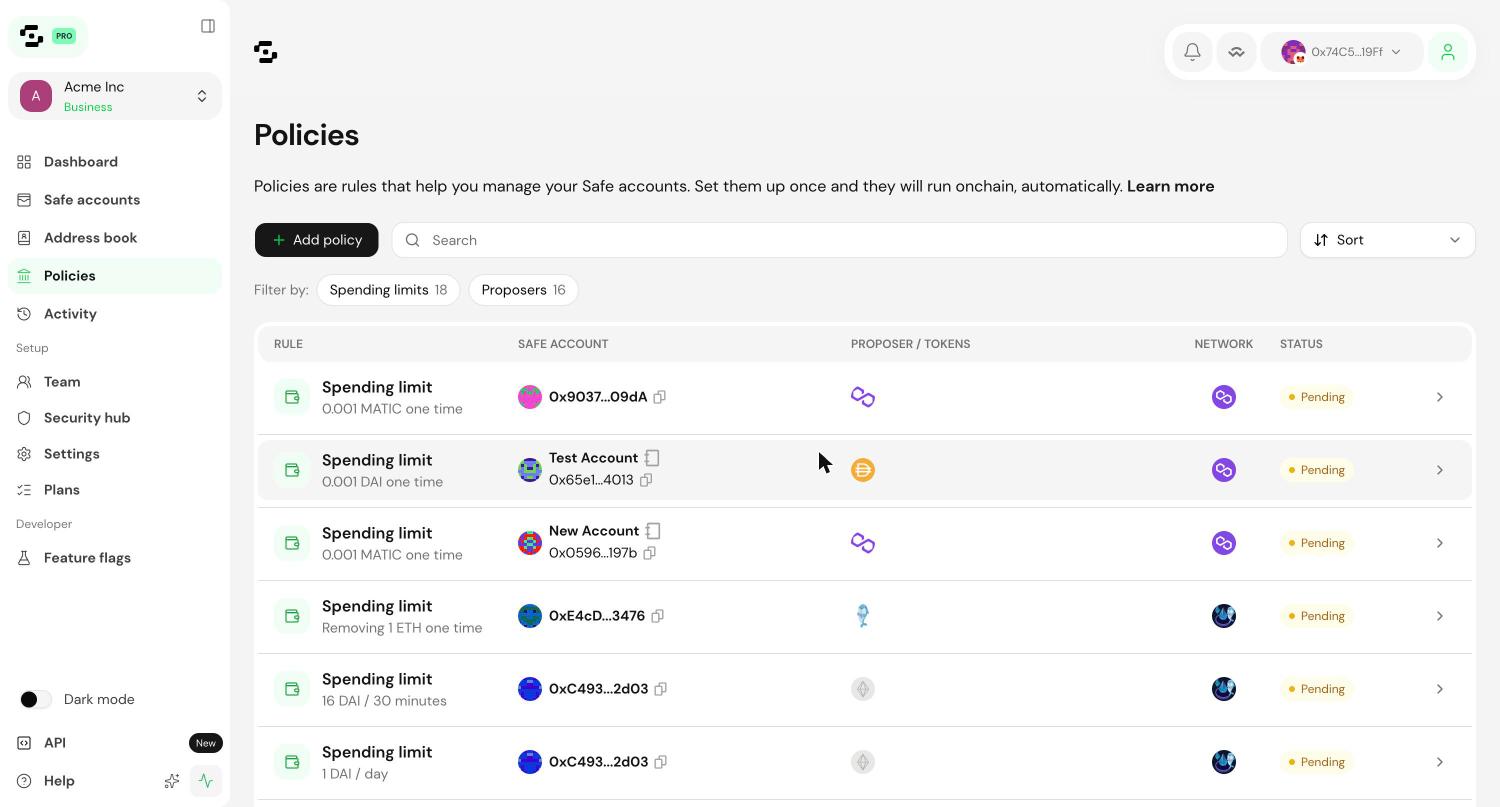
Fill in the rule.
Which Safe Account does this apply to? The account the limit draws from.
Spender. The address that can withdraw. Pick a contact from the address book or paste an address.
Token and Limit amount. The token and the cap.
Frequency. One time, or a period after which the limit resets.
Select Add token to give the same spender a limit on more tokens. Select Add spender to add more spenders to the same policy.
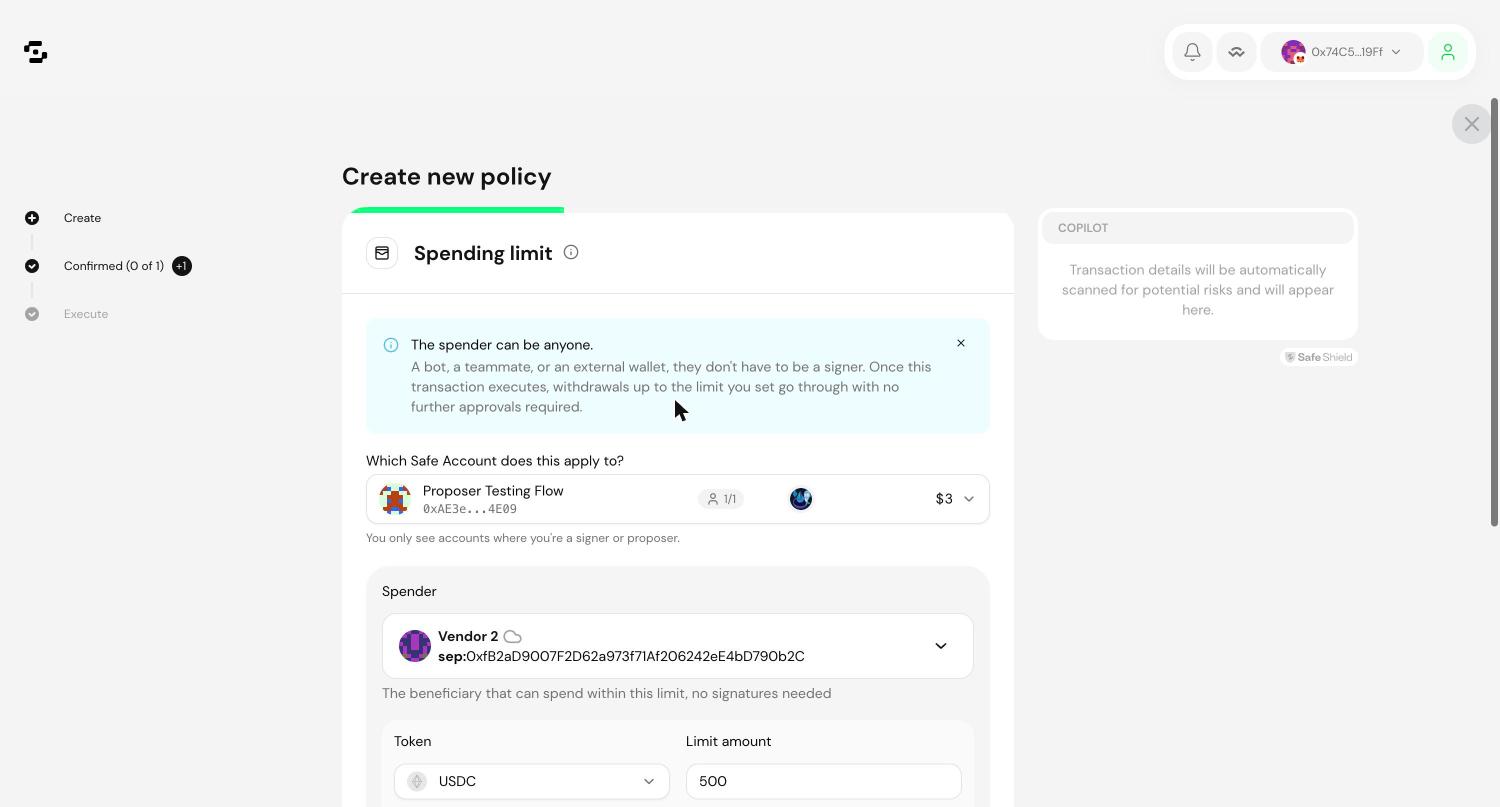
Review the policy and select Continue. The confirmation screen shows the account, the spender, and every limit. Under All actions you can see the two calls being made: addDelegate registers the spender, setAllowance sets the cap. Safe Shield checks run automatically.
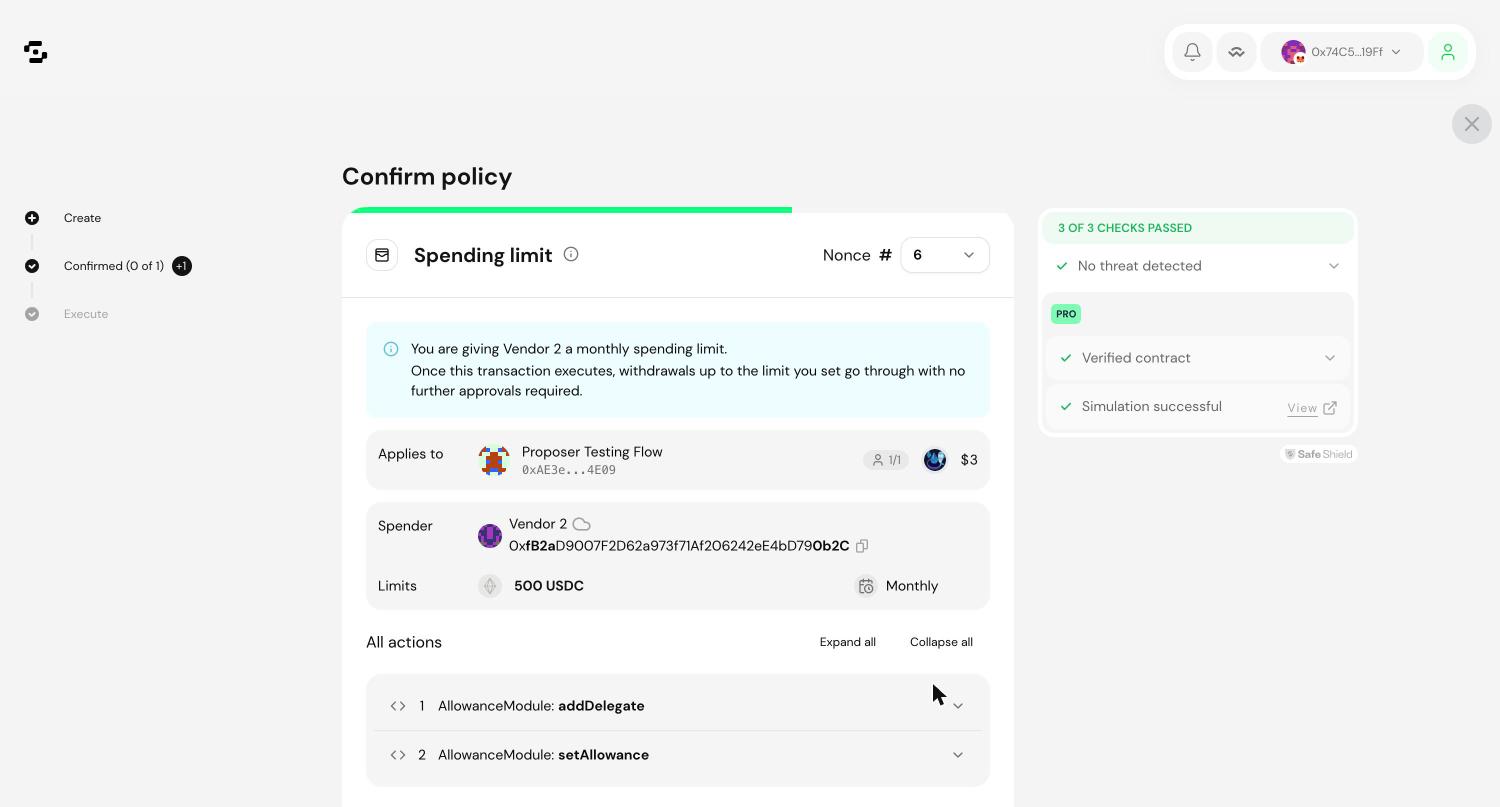
Sign the transaction.
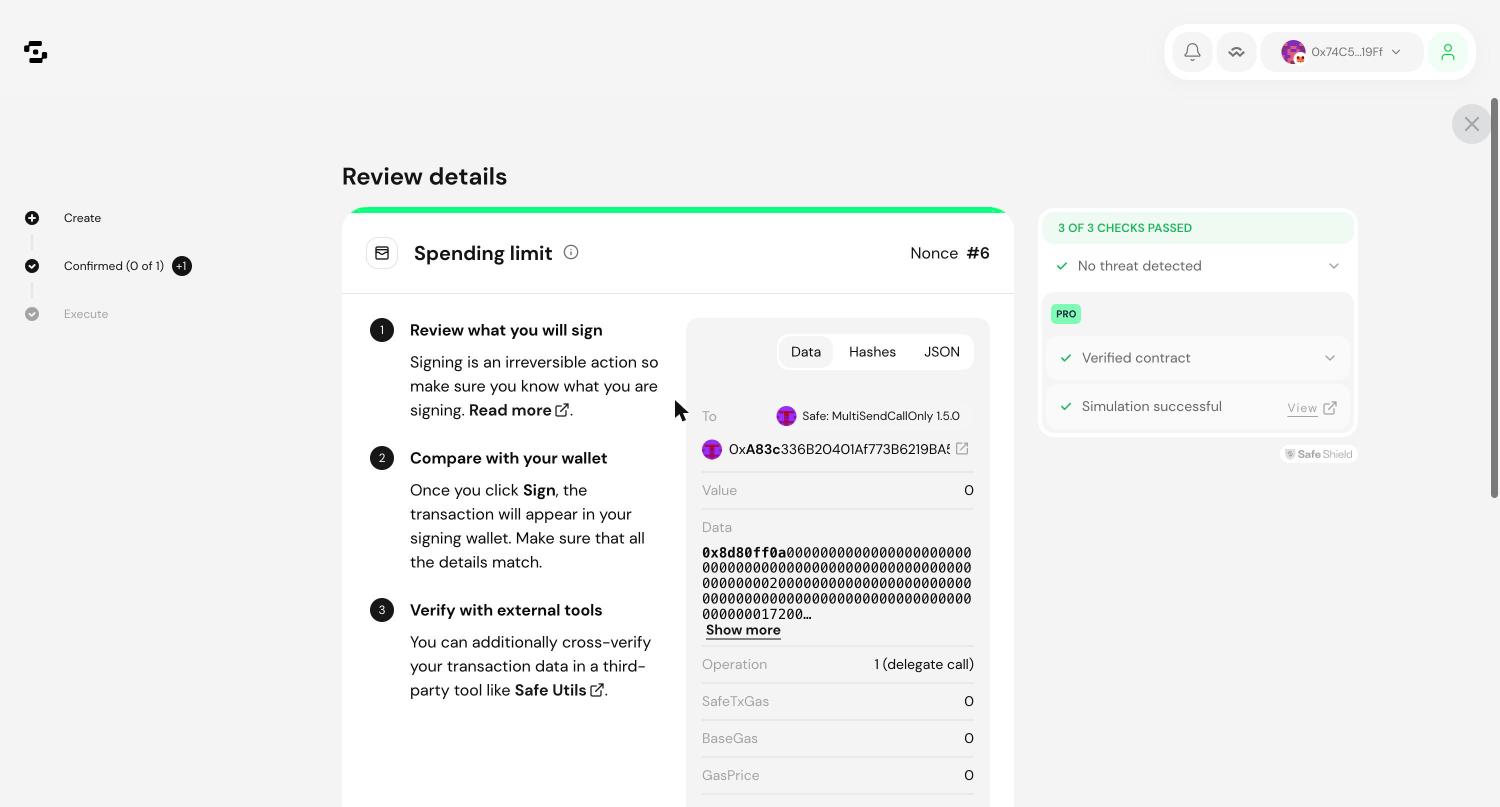
Execute the transaction and choose who pays gas. On paid plans, Safe can sponsor it. The first spending limit on a Safe account also deploys and enables the allowance module for that account.
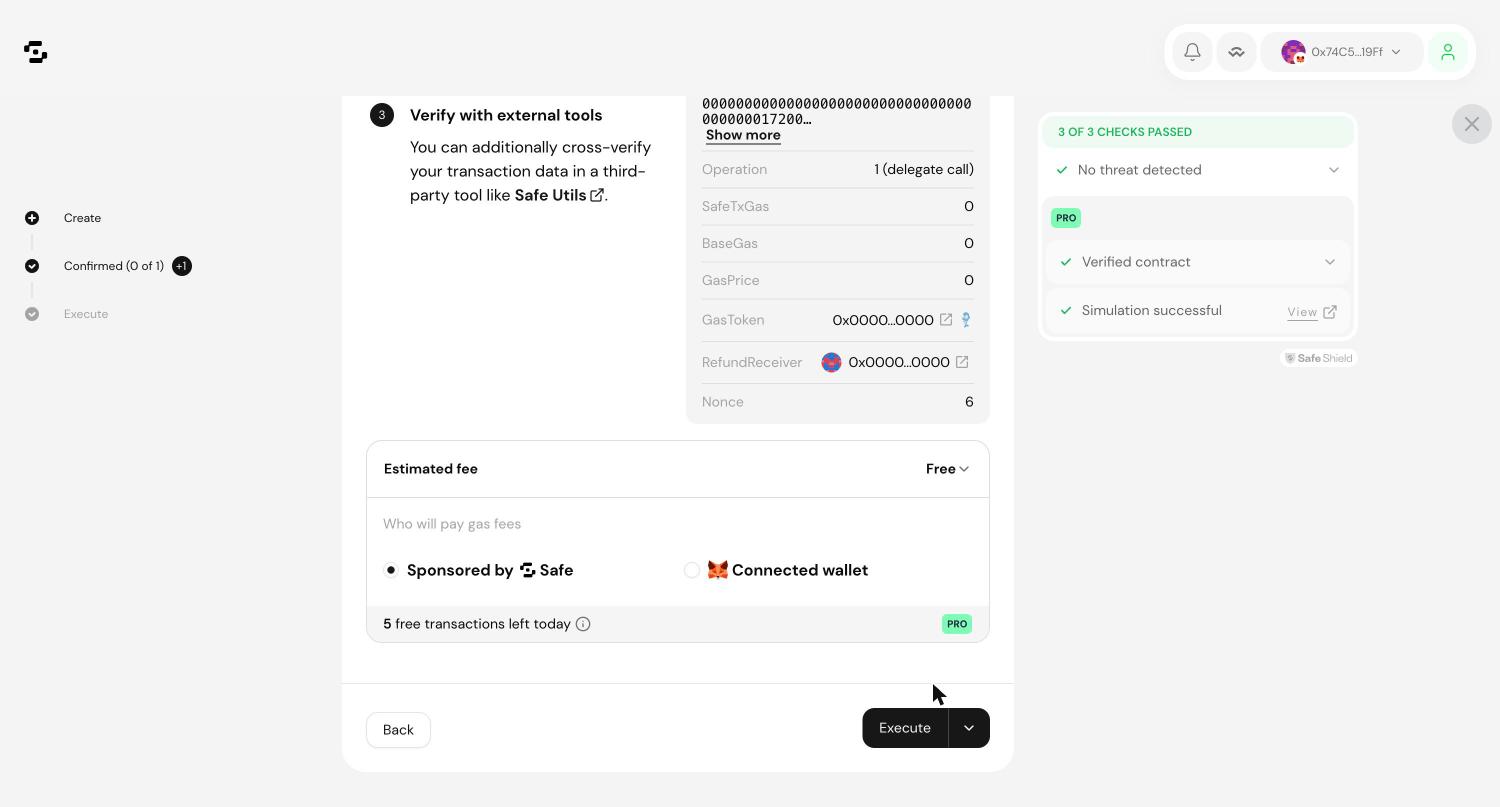
Pending and active
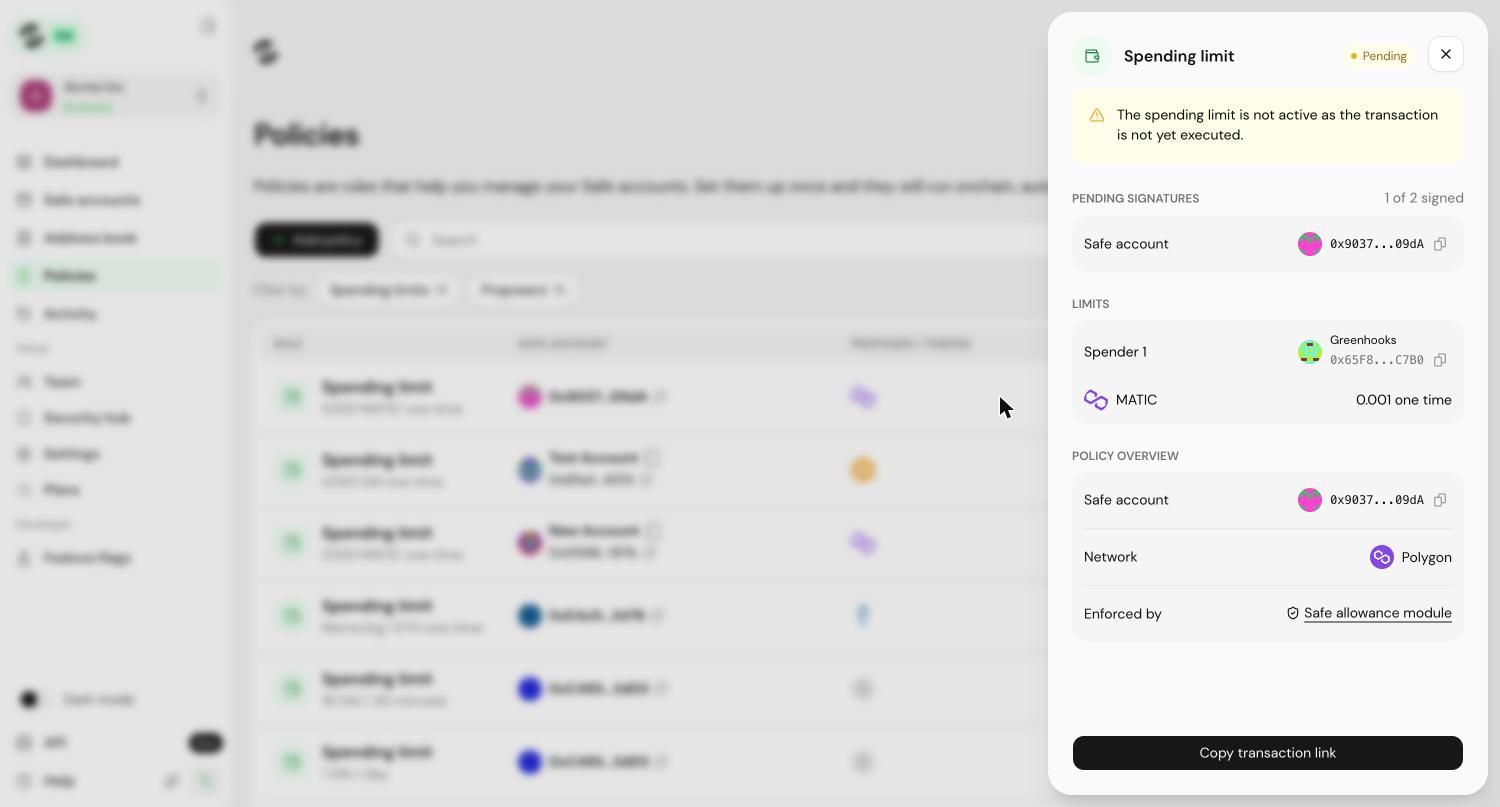
A policy stays Pending until its transaction executes. Open it to see how many signatures are still outstanding. A pending limit cannot be spent against.
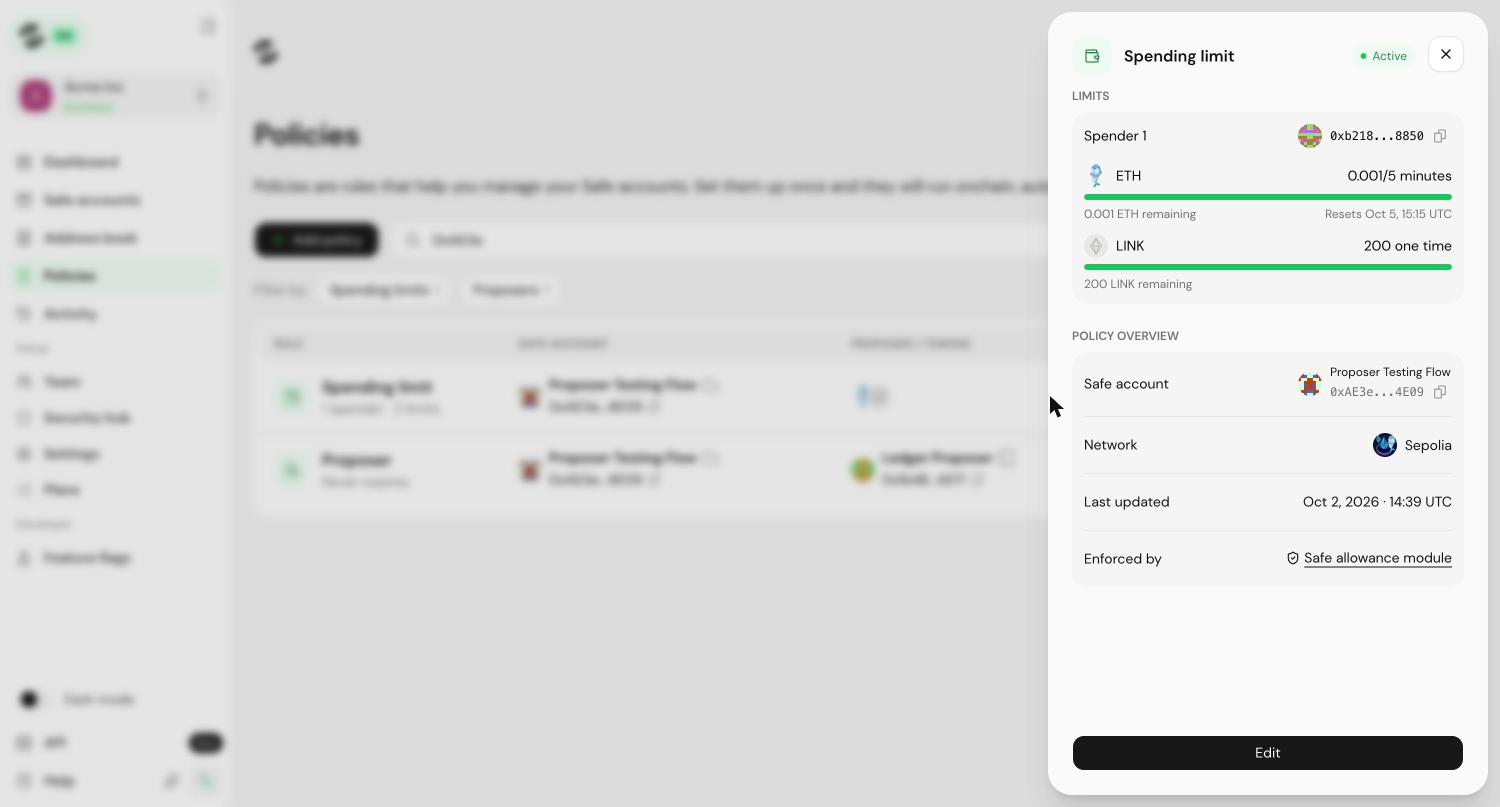
Once the transaction executes, the policy turns Active and the spender can withdraw immediately.
Check what is left
Open any active spending limit to see, per token, how much remains and when the limit resets. Enforced by links to the Safe allowance module that holds the rule onchain.
Spend against a limit
The spender connects their own wallet to the Safe account and sends the token as normal. Transfers inside the limit execute immediately, with no approval from other signers.
Transfers above the remaining limit fall back to the regular flow and need the account's threshold of signatures.
Edit or remove a limit
Only signers of the Safe account can change a spending limit. Open the policy and select Edit.
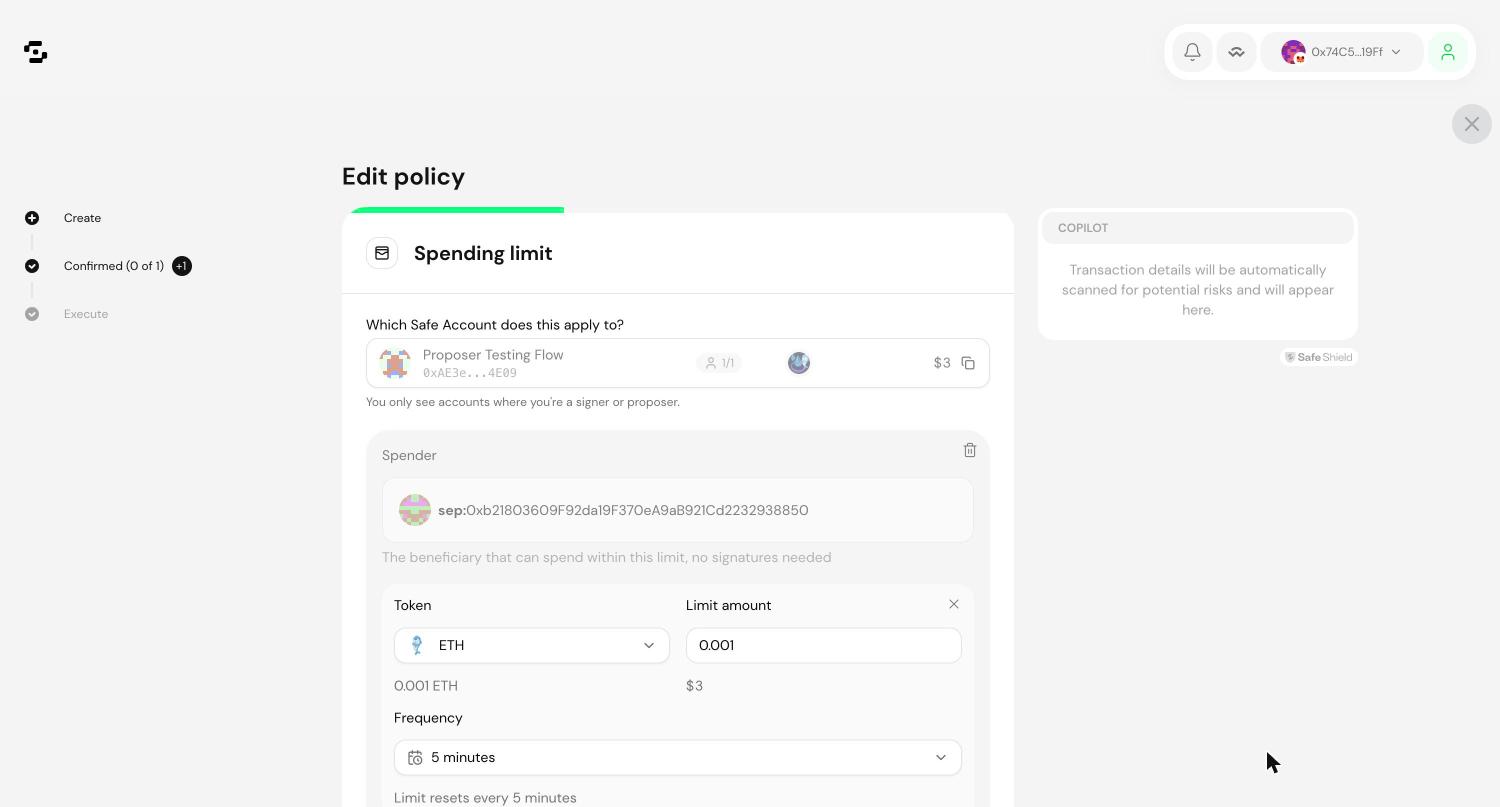
From here you can change a limit amount or frequency, remove a token from a spender with the cross next to it, remove a spender with the bin icon, or add more tokens and spenders.
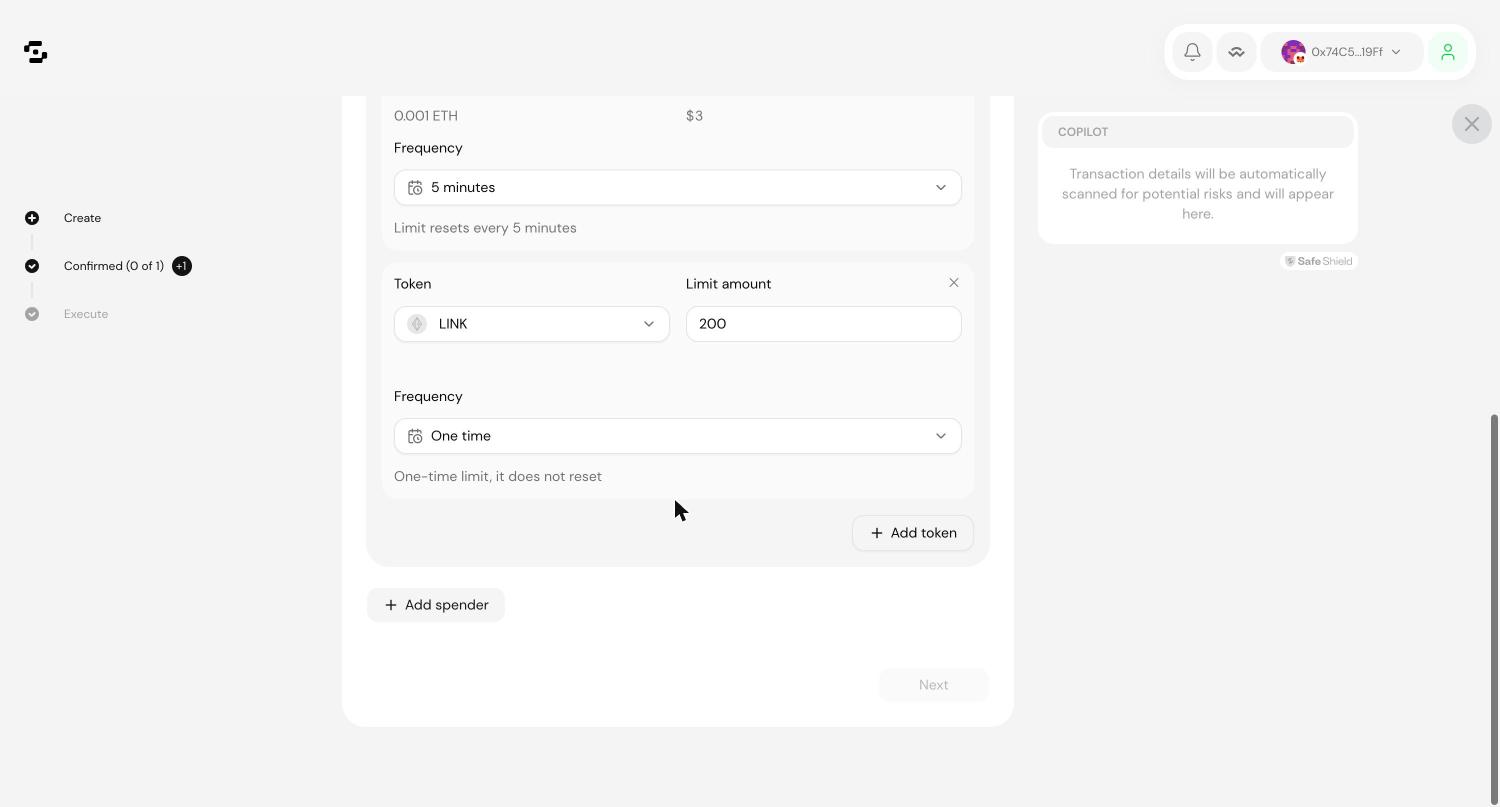
Changes go through the same sign-and-execute flow. The spender keeps the old limit until the new transaction executes.
Nested Safe accounts
Spending limits for a nested Safe account are managed in that account's own settings, not from the Policies page.