Address Book
Last updated: June 16, 2026
The Address Book lets you save names for wallet and contract addresses, making it easier to recognize addresses you use often.
Saved names appear across Safe{Wallet}, including when selecting recipients, reviewing transactions, and viewing transaction history. This can also help reduce the risk of address-poisoning or spoofing attacks, because trusted addresses display with the names you saved.
Always verify the full address before high-value transactions. Address book labels are a usability and review aid, not a replacement for transaction verification.
Address book types
Safe{Wallet} has two address book scopes:
Local address book
Your local address book is personal to you. Entries are stored in your local Safe{Wallet} data and are not shared with other Workspace members.
A local address book entry includes:
Name
Address
Network
You can use the local address book to:
Create address labels
Edit or delete saved entries
Search saved contacts
Select saved addresses when sending tokens
Export your address book as a CSV file
Import a previously exported CSV file
Important: local address book data is stored locally. If you clear browser data, reset local app data, or use another browser/device without importing your data, your local address book entries may not be available.
Import and export local contacts
You can export your local address book as a backup or import a previously exported file.
Exports use a CSV file with three columns:
address,name,chainId
Export your local address book
Open Address Book.
Select Export.
Confirm the export.
Safe downloads a CSV file containing your local address book entries.
Import a local address book
Open Address Book.
Select Import.
Choose a CSV file exported from Safe.
Select Import.
When you import a file:
Existing entries with the same address and network are updated with the name from the file.
Existing entries that are not included in the file are not removed.
Imported entries are added to your local address book.
The import does not update Workspace contacts.
Workspace address book
The Workspace address book is shared with members of a Workspace. It helps teams maintain a common set of recognized addresses across their Workspace workflow.
Workspace contacts include:
Name
Address
Networks
Added by
Last updated by
Workspace contacts are available to Workspace members and can be used across supported Workspace views.
You can easily migrate from a local only address book via the following option;
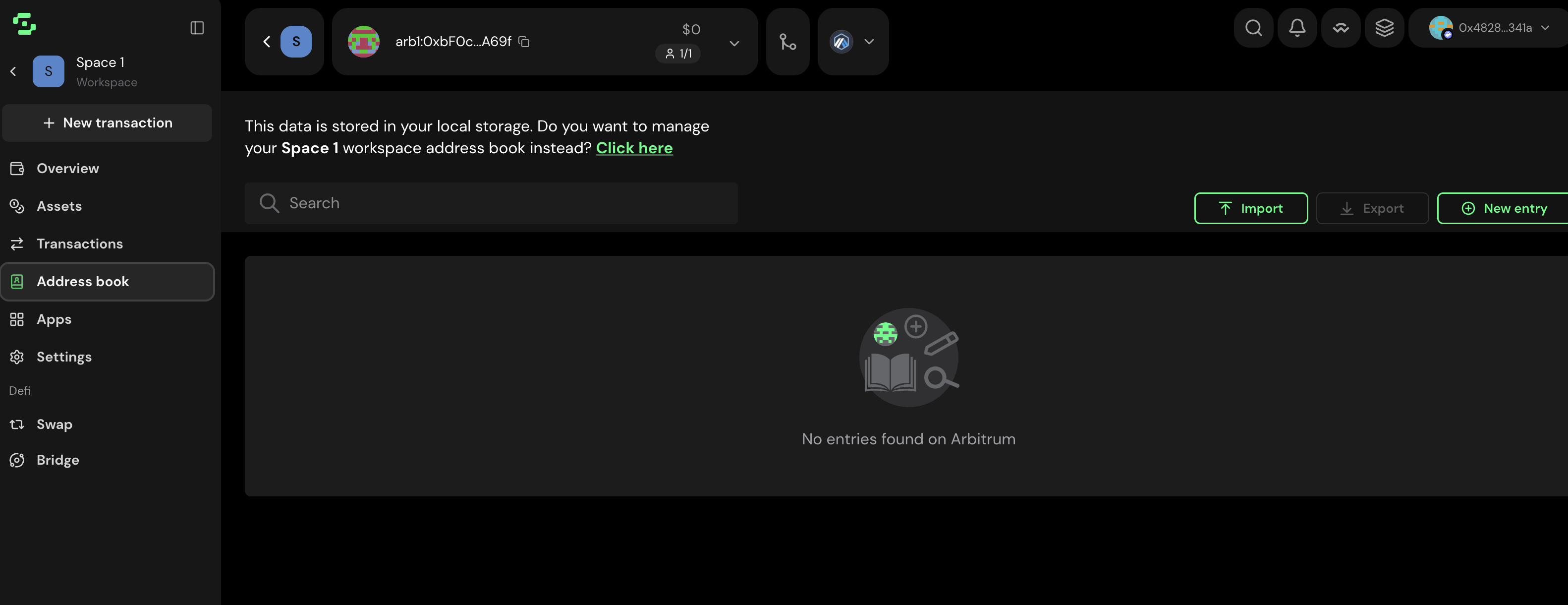
Workspace contacts and My contacts
In a Workspace, the Address Book page includes:
Workspace contacts: shared contacts available to the Workspace.
My contacts: your local contacts, plus Workspace contacts you created.
If the same address exists in both your local address book and the Workspace address book for the same network, the Workspace contact takes priority in Workspace-aware views.
Add a Workspace contact
Workspace Admins can add shared contacts.
Open the Workspace.
Go to Address Book.
Select Add contact.
Enter a name.
Enter the wallet or contract address.
Select all networks or specific networks.
Save the contact.
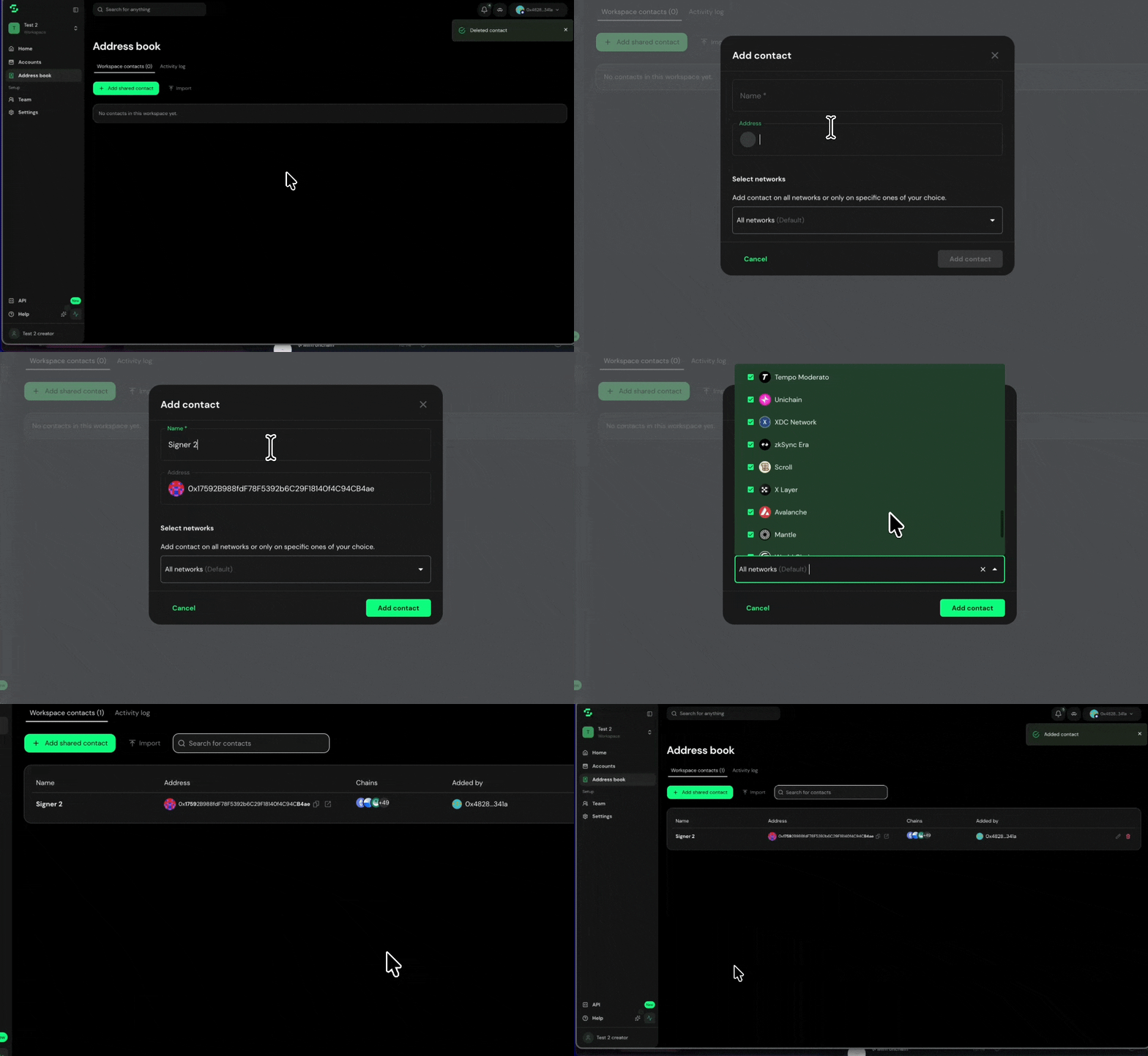
The contact becomes available to Workspace members.
Edit or delete a Workspace contact
Workspace Admins can edit or delete Workspace contacts.
When editing a contact, the address stays fixed. You can update the name and network selection.
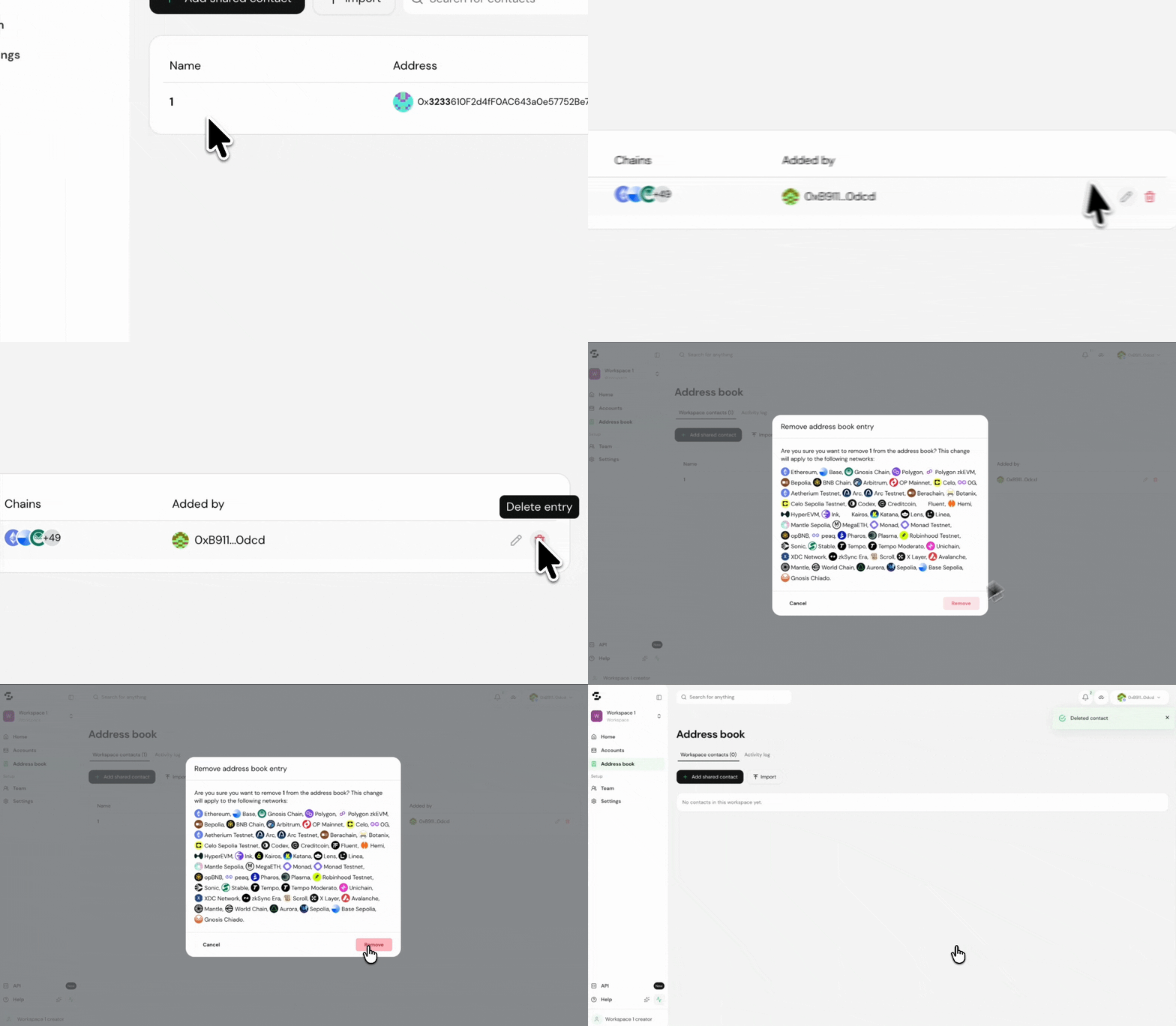
Deleting a Workspace contact removes it from the shared Workspace address book. It does not delete local address book entries that individual members may have saved separately.
Import local contacts into a Workspace
Workspace Admins can import selected contacts from their local address book into the Workspace address book.
Importing copies the selected local contacts into the Workspace. It does not create ongoing sync between the local address book and the Workspace address book.
Permissions
Workspace address book permissions follow Workspace roles:
Workspace address book changes require wallet authentication.
Limits
Current Workspace address book limits:
Up to 500 address book entries per Workspace
Up to 500 add or update actions within 10 minutes
Best practices
Use clear, consistent names, especially for team addresses. For example:
Treasury - Main
Payroll - USDC
Operations - Polygon
Grants Multisig
Review Workspace contacts periodically and remove outdated entries. For critical addresses, agree on an internal verification process before adding or updating them.
Troubleshooting
If you cannot see a Workspace contact:
Confirm you are in the correct Workspace.
Refresh the page.
Check that the contact is saved for the network you are using.
If you cannot add or edit Workspace contacts:
Confirm you are a Workspace Admin.
Confirm you are wallet-authenticated.
Check whether the Workspace has reached the 500-entry limit.
Wait and try again if many contacts were recently added or updated.
For any issues or enquiries, create a ticket via help.safe.global or reach out via the in-app chat.