How to create a Workspace and invite members
Last updated: October 6, 2026
Before you begin
You'll need:
A connected wallet or a verified email address. You can create a Workspace with either.
The addresses of the Safe Accounts you want to add. You don't need to be a signer on every one.
The email addresses, wallet addresses or ENS names of the people you want to invite.
Every Workspace needs a Safe Pro plan. New Workspaces start with a 30-day free trial on Starter or Business.
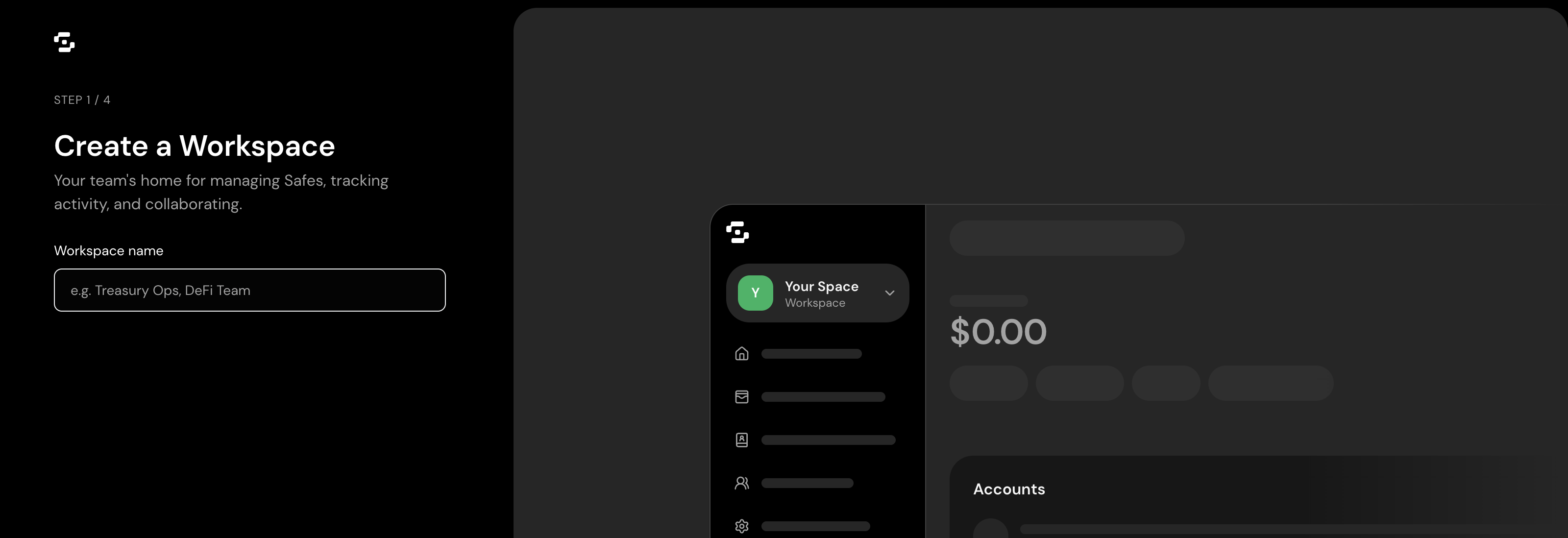
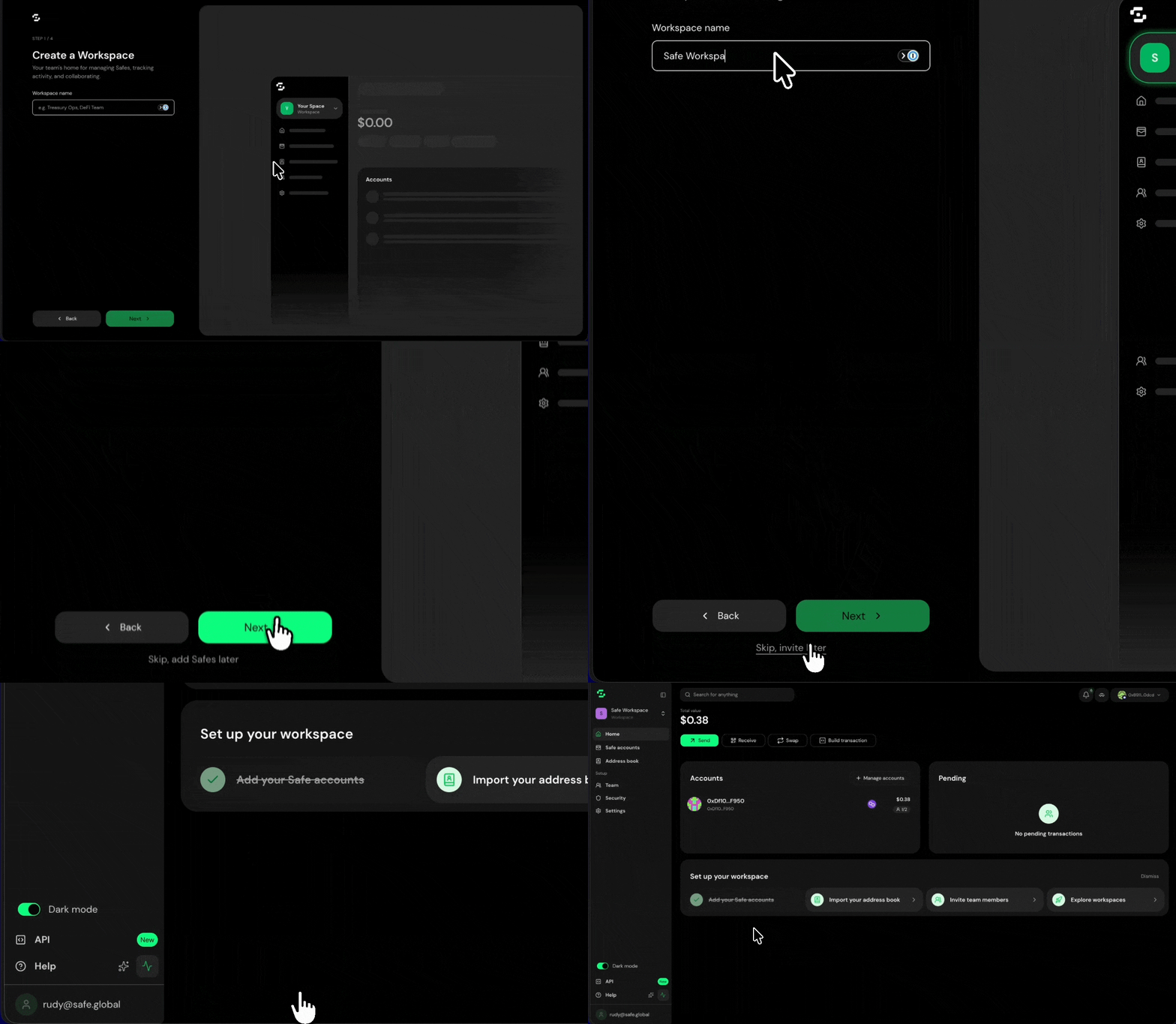
Step 1. Create the Workspace
From the Safe{Wallet} home screen, select Create Workspace.
Enter a name your team will recognise, such as your company name or a short internal name.
Optionally, upload a logo. It appears in the sidebar and on invitations.
Choose the plan to trial: Starter or Business.
Confirm. You'll go to your new Workspace dashboard. Whoever creates the Workspace becomes an Admin.
Step 2. Add your Safe Accounts
Open the Safes tab in the sidebar.
Select Link a Safe.
Choose the network and paste the Safe Account address. Repeat for each Safe Account you want to add.
Each Safe Account uses one seat on your plan. A Safe Account at the same address on several networks counts as one. Adding a Safe Account doesn't change its signers, threshold or balances.
Step 3. Invite your team
Open the Members tab.
Select Invite member.
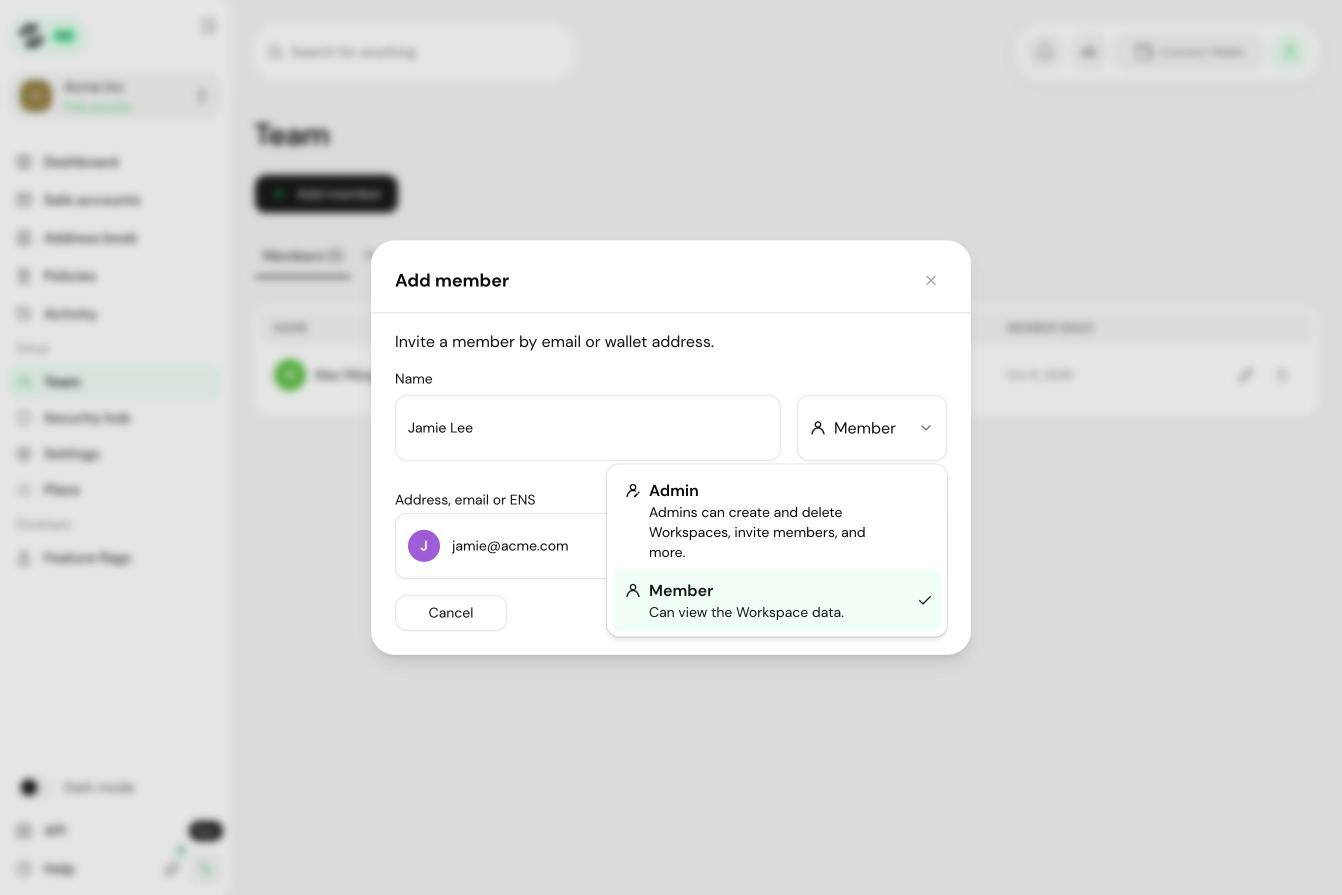
Enter an email address, wallet address or ENS name. You can paste a comma-separated list to invite several people at once.
Choose a role: Admin or Member.
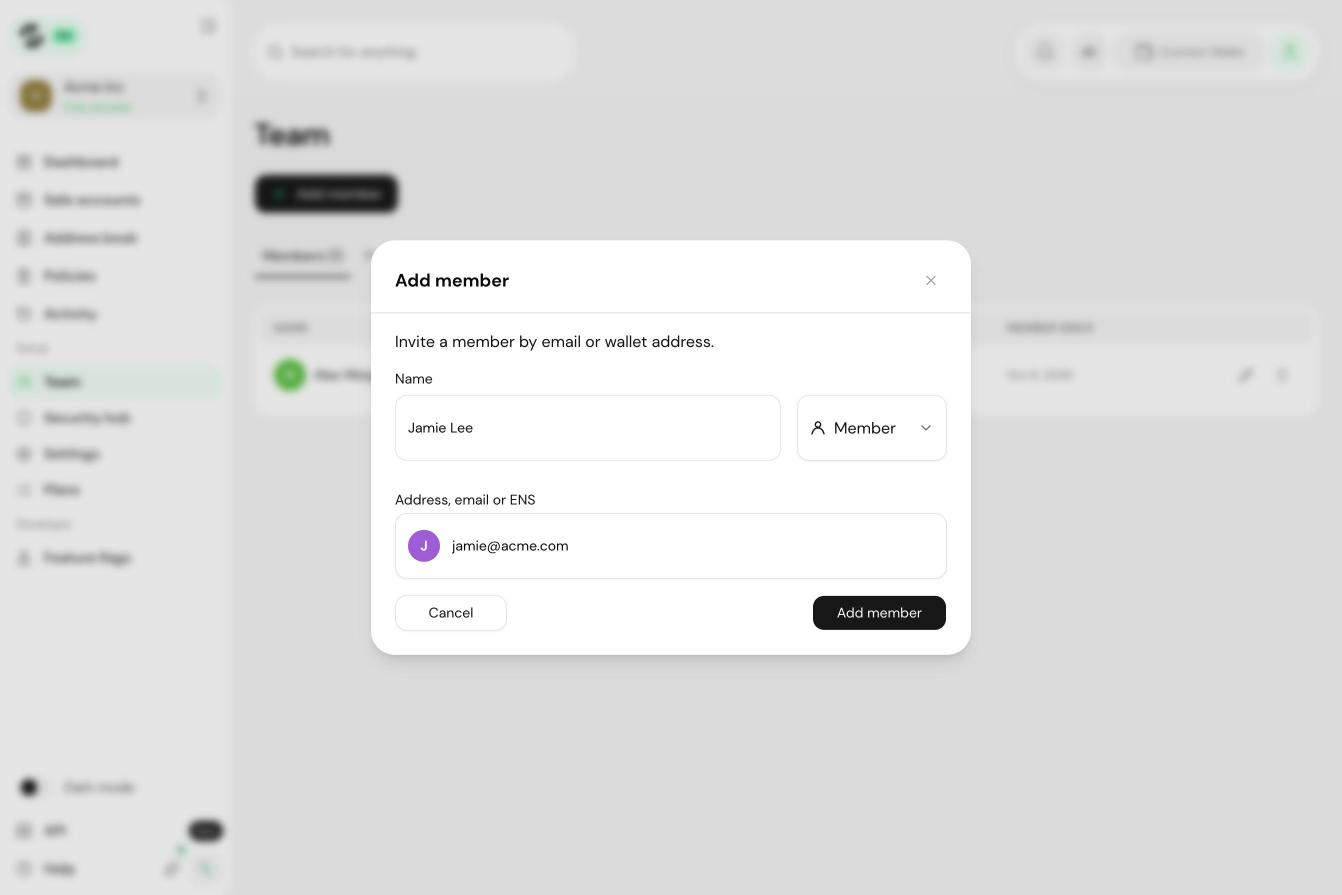
Select Send invitations.
Invitations are valid for 7 days. When someone accepts, they can log in with email, Google or a wallet. Their choice doesn't affect their permissions.
Members don't use seats. Every paid plan includes unlimited members.
Troubleshooting
An invitation expired. Re-send it from the Members tab.
A teammate already has a Safe{Wallet} account under a different email. They can log in with either method and connect both from their account settings.
Adding a Safe Account failed. Check the address and network. If you've reached your seat limit, Safe{Wallet} offers to upgrade your plan.