Security Hub
Last updated: June 15, 2026
The Security Hub gives you a single, at-a-glance view of how secure your Safe is. It runs a set of automated checks signer setup, recovery, contract version, and modules. It then rolls them into one security score out of 100.
Instead of digging through settings pages, you get one screen showing what's healthy, what needs attention, and what's at risk.
You can open it for any Safe you own (with your wallet connected) or any Safe in a Space you belong to.
The security score
At the top you'll see your score (e.g. 78 of 100), a strength label, and when it last scanned. Below it, a quick summary like "2 issues found."
The score reflects how many applicable checks your Safe passes. Checks that don't apply (like a multichain check on a single-network Safe) are left out — they neither help nor hurt your score.
Strength labels:
Strong (green) — follows security best practices.
Moderate (yellow) — solid, with room to tighten up.
At risk (red) — one or more real problems to address.
Critical (red) — a fundamental problem needing immediate attention.
Some issues override the score on their own. A Safe controlled by a single signer can be flagged Critical even when most other checks pass. A high number alone doesn't mean you're in the clear, always read the flagged checks.
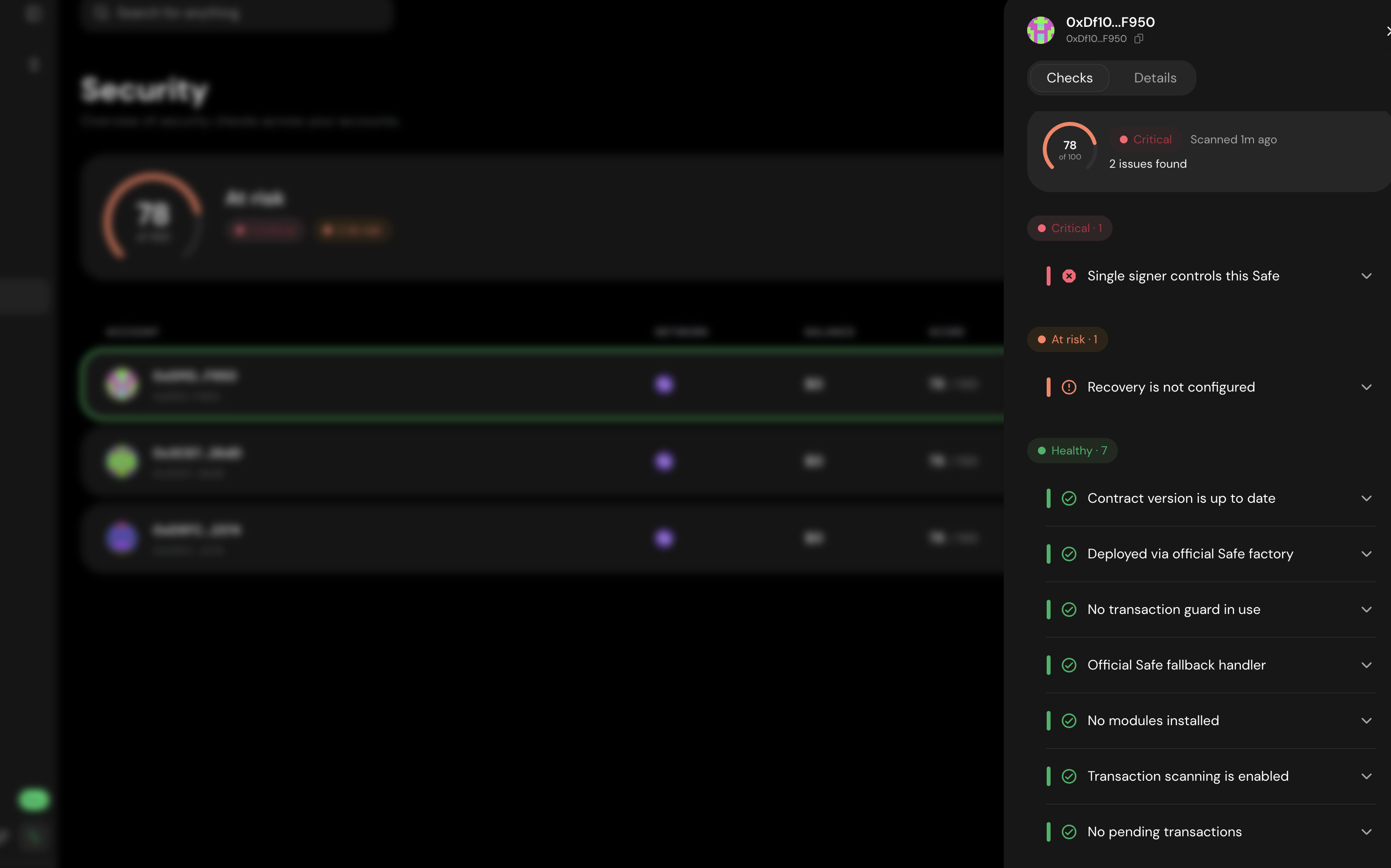
Reading the checks
The Checks tab groups results by severity, most important first: Critical and At risk need action, Needs attention is worth a review, Healthy passed, and N/A / Unverified checks don't apply (greyed out, no effect on score).
Expand any check (tap the chevron) to see what was found, why it matters, and a recommendation. Most include a button that takes you straight to the right settings page to fix it.
What the checks cover:
Account setup — signer count and approval threshold. A single signer or a threshold of 1 is critical; a sensible majority (e.g. 3 of 5) is recommended.
Contract version — whether you're on a current, recognized Safe version.
Multichain setup — consistent signers across networks.
Modules & extensions — whether installed modules are trusted; unverified ones can control your Safe.
Transaction guard — whether a guard is set and from a recognized provider.
Pending transactions — a large queue is flagged, since stale transactions can be exploited.
Recovery setup — whether you can recover the Safe if all keys are lost.
Transaction scanning — whether transactions are scanned for risks before execution.
Deployment origin — whether your Safe was created via an official factory.
Fallback handler — whether the handler is a known, official one.
Signer screening — whether any signer is exposed to sanctioned or malicious sources.
Some actions (like managing recovery) are only available to Safe owners with a connected wallet. Viewing as a Space member, you'll see findings but may not see every action button.
Account Activity tab
The second tab is a historical audit log of every configuration change to your Safe;
who added a signer, when the threshold changed, and so on.
Each entry shows the timestamp, nonce, what changed, the source (Safe Wallet or a Safe App), signature count vs. threshold, status, and a link to the full transaction.
Warning chips flag higher-risk entries: critical changes (guards, fallback handler, contract upgrades), module-executed changes (not owner-signed), and failed executions. Skimming this log periodically helps you spot any change you didn't expect.
Good habits
Check the Hub after any major change to your Safe.
Treat Critical and At risk findings as to-dos, not just information.
Don't read the score in isolation, one critical finding matters more than a high number.
Review the activity log now and then to confirm every change was yours.